
Many iPhone and Mac users eventually face the frustrating message: “iCloud storage is full.” Apple’s iCloud storage plans can be expensive compared to other online cloud services, so upgrading storage isn’t always the best solution.
The good news is that you can easily free up space by deleting photos and videos that you no longer need. Since photos and videos usually take up the largest portion of iCloud storage, removing unnecessary files can quickly create additional space.
However, the way photos are stored in iCloud depends on your iCloud Photos settings. Understanding these settings will help you manage and delete your images properly.
Understanding iCloud Photo Storage Settings
If you are using a modern iOS version, iCloud Photos typically uses one of the following two storage settings.
- Optimize iPhone Storage – In this setting, your original photos are stored in iCloud while smaller, optimized versions remain on your iPhone. This helps save device storage. However, when you delete photos from your iPhone, they are also removed from iCloud.
- Download and Keep Originals – With this option, the full-resolution copies of your photos are stored on both your iPhone and iCloud. This setting uses more storage space, but it ensures you always have the original files available on your device.
Regardless of which option you use, deleting a photo from your iPhone will also remove it from iCloud if iCloud Photos is enabled.
How to Delete Photos from iCloud Using Your iPhone
The easiest way to delete photos from iCloud is directly through the Photos app on your iPhone. When iCloud Photos is turned on, any photos you delete from your phone will automatically be removed from iCloud as well.
Follow these simple steps to remove unwanted photos:
- Open the Photos App on your iPhone.
- Tap the Library or Photos tab at the bottom of the screen.
- You will now see all your photos and videos in a grid view.
- Tap the Select option in the top right corner.
- Choose the photos or videos you want to delete.
- Tap the trash can icon located at the bottom right.
- A confirmation dialog will appear asking whether you want to delete the selected photos.
- Tap Delete to confirm.
- The system will inform you that these photos will be removed from iCloud on all your devices.
- Tap Delete <number of items> Photos to finalize the process.
Once completed, the selected photos will disappear from your photo library and move to the Recently Deleted album.






Permanently Deleting Photos from iCloud and iPhone Storage
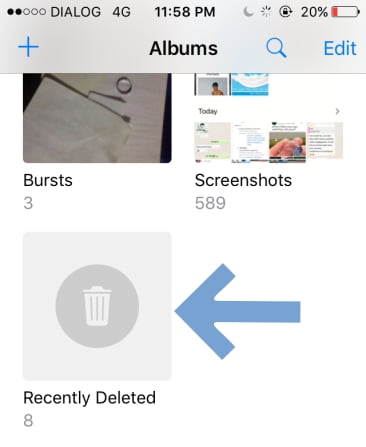
Deleting photos from the Photos library does not immediately remove them permanently. Instead, they are moved to the Recently Deleted folder, where they remain for up to 30 days before being automatically erased.
If you want to free up storage space immediately, you must remove them from the Recently Deleted album.
Follow these steps:
- Open the Photos App.
- Tap the Albums tab at the bottom of the screen.
- Scroll down until you find Recently Deleted.
- Open the album.
- Tap Select in the top-right corner.
- Choose the photos you want to permanently remove.
- Tap Delete in the bottom-left corner.
- Confirm deletion.


How to Empty the Recently Deleted Album Quickly
If you want to remove all deleted photos at once and free up storage immediately, you can empty the entire Recently Deleted folder.
- Open the Recently Deleted album.
- Tap Select.
- Choose Delete All at the bottom.
- Confirm the deletion.
Once you delete photos from this album, they are permanently removed from both your device and iCloud storage. This action cannot be reversed, so make sure you truly want to delete the photos before confirming.
How to Recover Deleted Photos from iCloud
If you accidentally delete a photo, you can still recover it from the Recently Deleted folder within 30 days.
- Open the Recently Deleted album.
- Tap Select.
- Choose the photos you want to restore.
- Tap Recover or Recover All.
- Confirm the recovery.
The photos will return to your main library and will again be synced with iCloud.

Alternative Method: Delete Photos from iCloud Without Deleting from Phone
Sometimes users want to remove photos from cloud storage but keep them on their devices. In that case, you can disable iCloud Photos or follow other techniques explained in this guide: delete.
Tips to Prevent iCloud Storage from Filling Up
To avoid running out of iCloud storage in the future, consider these tips:
- Regularly delete unnecessary screenshots and duplicate photos.
- Move large videos to external storage.
- Use alternative cloud storage platforms for backups.
- Disable automatic photo syncing if you don’t need it.
Conclusion
Managing your iCloud storage doesn’t have to be complicated. By deleting unnecessary photos and clearing the Recently Deleted folder, you can quickly free up valuable storage space. Regularly reviewing your photo library will help keep your iPhone, iPad, and iCloud storage organized and running smoothly.